You typed a few sentences into an AI builder and, minutes later, a website appeared. It looks good. It might even look better than the site you paid for five years ago. Then the practical questions arrive: can you edit it next year without the AI? Can your marketing person add a blog post? Can you install the SEO plugin everyone recommends? That is usually the moment people start looking for a way to convert an AI website to WordPress.
This guide is written from the perspective of someone who does this work: taking a finished AI-generated site and turning it into a WordPress site the owner can actually run. It is deliberately not a list of AI tools. It is a walk through the conversion journey — what happens to your pages, your images, your menu, your links and your contact form when the site changes homes, and what an experienced pair of eyes checks before anyone presses launch.
The short answer to the question in your head: yes, in most cases the website you designed can move to WordPress and keep looking like the website you designed. The longer answer — the useful one — is that a conversion is only finished when every page has been checked, not when the homepage looks correct. That distinction is the entire article.
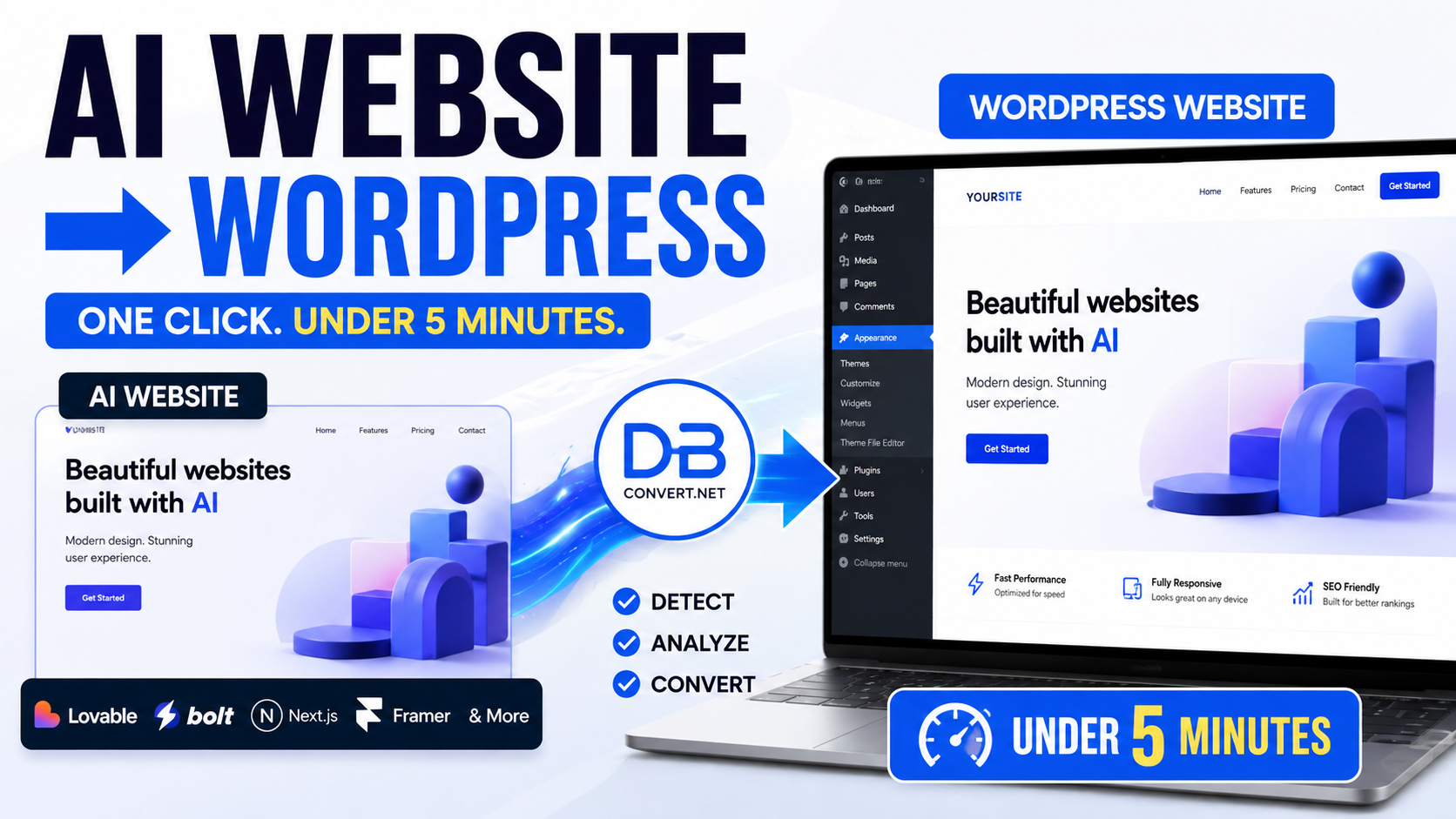
Why people move an AI site to WordPress at all
AI builders are excellent at the first 80% of a website. They are fast, they produce clean layouts, and they remove the blank-page problem. Where owners typically hit a wall is everything that comes after the design is done:
- Ownership. A WordPress site sits on hosting you control, in a format thousands of developers understand.
- Editing without prompts. Changing a price or a phone number should not require re-generating a page.
- Content growth. Blogs, categories, authors, scheduled posts and archives are native to WordPress.
- Plugins. Booking, multilingual, forms, memberships, analytics, cookie consent — the ecosystem is enormous.
- SEO control. Titles, descriptions, canonical tags, redirects, schema and sitemaps become adjustable settings instead of code.
- Handover. Any agency can pick up a WordPress site. Far fewer can pick up an unfamiliar AI export.
None of that means AI builders are bad. It means the two tools serve different stages. Build fast with AI, then move the result somewhere durable. That is exactly the job a dedicated AI website to WordPress converter is designed to do.
What actually happens during a conversion
Most people imagine conversion as one button. In practice it is a sequence of small, checkable stages. Understanding them is what turns you from a nervous website owner into someone who can judge whether the job was done properly.
Stage 1 — The export
Every AI builder gives you some way out: a downloadable project, a published URL, a code repository, or a ZIP file. This export is the raw material. If the export is incomplete — a page that was never published, a section that only exists in the editor preview — nothing downstream can rescue it. Check completeness *before* exporting, not after.
Stage 2 — Page discovery
This is the stage almost everyone underestimates. A conversion tool has to find every page, including the ones nobody links to from the menu: the thank-you page after a form, the privacy policy in the footer, the old landing page from a campaign, the individual portfolio detail pages. A hypothetical example: a studio believes it has 9 pages. Discovery finds 17, because each of the six portfolio projects had its own detail page. Those eight extra pages are the difference between a demo and a website.
Stage 3 — Design preservation
Your layout, spacing, colours, fonts and section order need to survive the move. A good conversion keeps the visual result rather than forcing your design into a generic theme. What you should expect: a page that looks like your page. What you should still check: font loading (custom fonts sometimes need to be added to the new host), and hover or scroll effects, which are the most fragile part of any design.
Stage 4 — Images and media
Images live somewhere. In an AI build they often live on the builder's own servers or a CDN. If they stay there after conversion, your WordPress site is quietly dependent on an account you may cancel. The correct outcome is that images are pulled into the WordPress media library, with sensible filenames and alt text preserved where it existed. Background images set in CSS are the ones most often left behind — check hero sections and section dividers specifically.
Stage 5 — Navigation and internal links
A menu is not just a row of words; each word is a promise to go somewhere. During conversion, URLs can change shape (`/about-us` may become `/about-us/`, or an anchor link may point at a section that now lives on a different page). Every menu item, every button and every in-text link needs to resolve. A site where the header works but three buttons inside the pricing page do nothing is not converted — it is half converted.
Stage 6 — Forms and interactive elements
Forms are where the honesty needs to be loudest. The visual form — fields, labels, layout, button — converts well. The *submission* is a different system: where the message goes, spam protection, autoresponders. In WordPress this is normally rebuilt with a form plugin, connected to your email, and then tested with a real submission. The same applies to bookings, logins, dashboards, payments and anything talking to an external API: these are backend systems, and they may need additional development work rather than a straight conversion.
Stage 7 — Responsive behaviour
Phones are where most visitors will see your site and where most conversion faults hide. Long headlines wrapping badly, tables overflowing sideways, a mobile menu that opens but does not close, a sticky header covering the first line of every page. None of these appear on a desktop screenshot.
Stage 8 — Building and testing in WordPress
Finally the pages exist as real WordPress pages, editable in the WordPress editor. Then the review begins: click everything, on two screen sizes, in a logical order. Only then is the job done. If you want to see the flow demonstrated rather than described, the video further down walks through it visually — and you can try the same steps with your own project using Convert2WP.
Try it with your own site
Point the converter at the AI project you already built and see what comes back.
See what gets discovered
Curious how many pages your site really has? Discovery is usually the surprise.
Keep your design
Move the layout you approved, not a generic template that vaguely resembles it.
The ten builders, reviewed one by one
It is a myth that all AI builders produce the same output. They differ in how the site is structured, how images are handled, and how much of the page is generated at the moment of viewing rather than stored as a finished page. Below is a practical review of each: what people build with it, what happens on the way to WordPress, and what deserves a second look.
1. Lovable
Commonly built: full multi-page business sites, SaaS marketing sites, startup landing pages, small app front-ends. On the way to WordPress: the page structure is usually clear and the design translates well, so the visual result tends to be close to the original. What to check: dynamic routes (pages generated from a list), any dashboard or login area, and animated sections. Expert recommendation: one of the more comfortable starting points — most owners can convert a Lovable website and spend their review time on forms rather than layout.
2. Framer
Commonly built: highly designed marketing sites, agency and portfolio sites, launch pages with rich motion. On the way to WordPress: the layout carries over well; the elaborate scroll animations are what change most. What to check: motion effects, sticky sections, CMS-driven collections such as blog lists, and custom fonts. Expert recommendation: budget a little time to re-create the two or three animations that matter and accept simpler behaviour on the rest — the pages themselves convert to WordPress without drama.
3. v0
Commonly built: individual pages and UI blocks — a hero, a pricing table, a dashboard mock-up — often assembled into a site later. On the way to WordPress: components convert cleanly, but a collection of components is not automatically a website. What to check: that a real menu exists, that pages link to one another, and that shared elements like the footer appear everywhere. Expert recommendation: assemble the pages into a linked site *before* converting; the result is far more complete.
4. Cursor
Commonly built: hand-steered projects where a developer used AI as an assistant — anything from a five-page brochure site to a small application. On the way to WordPress: results depend on how the project was organised. Straightforward page-based projects convert predictably. What to check: whether content sits in the pages or is pulled from data files, plus any server-side logic. Expert recommendation: great candidate when the project is content pages; treat app-like features as separate development.
5. Replit
Commonly built: prototypes, tools, small web apps, sometimes with a database attached. On the way to WordPress: the presentation layer converts; the app logic does not travel automatically. What to check: which parts are pages and which parts are functionality, plus anything that stores user data. Expert recommendation: convert the marketing and content pages to WordPress, and decide deliberately what to do with the interactive part.
6. Google AI Studio
Commonly built: experiments, single-page demos, AI-powered widgets and prototypes. On the way to WordPress: the static parts convert well; anything calling an AI model in the background needs a home on the server side. What to check: whether the page still 'does' something once it is a WordPress page, and where any API keys were used. Expert recommendation: perfectly convertible as a presentation site; keep the clever part as a separate service you link to.
7. Gemini
Commonly built: pages generated straight from a conversation — often a homepage, a services page and a contact page produced as code you copy out. On the way to WordPress: simple, self-contained pages convert very cleanly. What to check: that all pages were actually saved somewhere, and that they link to each other rather than existing as separate files. Expert recommendation: collect everything into one project folder first, then convert your AI-built website in one pass so navigation is consistent.
8. Claude
Commonly built: well-structured multi-section pages, documentation-style sites, clean informational sites with plenty of text. On the way to WordPress: content-heavy pages convert particularly comfortably, and headings usually survive in good order — which matters for SEO. What to check: in-page anchor links, tables, and any interactive component that was written as a small script. Expert recommendation: among the easier conversions, especially for text-led sites.
9. Bolt
Commonly built: complete sites generated in one go, plus app-style projects with several screens. On the way to WordPress: page structure is usually recognisable, so discovery tends to work well. What to check: whether some 'pages' are really views inside an app, and any state that changes what the page shows. Expert recommendation: convert the public pages; review anything that behaved like an app screen.
10. Webflow
Commonly built: professionally designed business sites, portfolios and blogs, often with CMS collections. On the way to WordPress: visually one of the most faithful conversions, because the output is structured and stable. What to check: CMS collections (blog posts, case studies) which need to become WordPress posts, plus interactions and form endpoints. Expert recommendation: an excellent conversion candidate; plan how collections should map to WordPress post types before you begin.
Quick comparison — how each builder behaves when moving to WordPress.
| Builder | Ease of moving | Pages | Navigation | Images & design | What to check | Expert recommendation |
|---|---|---|---|---|---|---|
| Lovable | Easy | Usually all found | Carries over well | Close to original | Animations, login areas | Strong candidate — check forms |
| Framer | Easy to moderate | Found reliably | Works after review | Very faithful | Motion effects, CMS lists | Great result, expect animation tweaks |
| v0 | Moderate | Depends on assembly | Often needs building | Clean | Missing menu, page links | Assemble the site first |
| Cursor | Moderate | Good if page-based | Usually fine | Preserved | Data-driven content, logic | Ideal for content sites |
| Replit | Varies | Pages yes, app views no | Check manually | Preserved | App logic, stored data | Convert the site, plan the app |
| Google AI Studio | Easy for simple pages | Few pages typically | Simple | Preserved | AI features, API keys | Fine as a presentation site |
| Gemini | Easy | Only what you saved | Often needs linking | Preserved | Loose files, menu | Gather everything first |
| Claude | Easy | Clear structure | Good | Preserved | Anchors, tables, scripts | Excellent for text-led sites |
| Bolt | Easy to moderate | Usually complete | Good | Preserved | App-style screens | Convert public pages first |
| Webflow | Easy | Found reliably | Carries over well | Very faithful | CMS collections, forms | Plan blog/collection mapping |
Lovable or Bolt project?
Both convert comfortably. See what your export produces in WordPress.
Framer or Webflow site?
Design-heavy sites keep their look — check motion and collections after.
Loose pages from Gemini or Claude?
Bundle them into one project and convert in a single pass.
A realistic example: the 15-page business website
This is a hypothetical example, written to show the shape of a real review rather than to report a specific customer's results. Imagine a consultancy owner who builds a 15-page site with an AI builder: homepage, about, three service pages, pricing, portfolio overview, four portfolio detail pages, blog overview, two blog articles, and a contact page with a form. Roughly 60 images, a header menu with a dropdown, a footer with a privacy link, and around 40 internal links scattered through the text and buttons.
The owner looks at the converted homepage and it is beautiful. Fonts right, hero image sharp, buttons in the right place. It is tempting to call that a successful conversion. Here is what the expert does instead.
The review, page by page
- 1Count the pages. 15 expected, 15 present? If discovery reports 12, find out which three are missing and why — usually they were never linked or never published.
- 2Open every page. Not the menu, the actual list. The fourth portfolio detail page is exactly the kind of page nobody looks at until a client does.
- 3Test the menu, including the dropdown. Dropdowns are the single most common navigation casualty, especially on mobile.
- 4Check the footer on all pages. Privacy and terms links tend to be forgotten and are exactly what a visitor looks for when deciding to trust you.
- 5Look at every image. 60 images means 60 opportunities for one to be missing. Watch the background images behind headings especially.
- 6Read the alt text. If it survived, keep it. If it did not, this is the cheapest SEO improvement available.
- 7Check the thank-you page. It is page 16 that nobody counted.
- 8Open the site on a phone. Every page. Look for horizontal scrolling, cramped tables and headlines that break awkwardly.
- 9Verify page titles and descriptions. Each page needs its own; duplicates confuse search engines and look sloppy in results.
- 10Check URLs. Keep them the same as before where possible. Where they change, set redirects.
- 11Test speed on a phone connection. Large hero images are the usual culprit.
- 12Have someone else click around for five minutes. Fresh eyes find the broken thing you have stopped seeing.
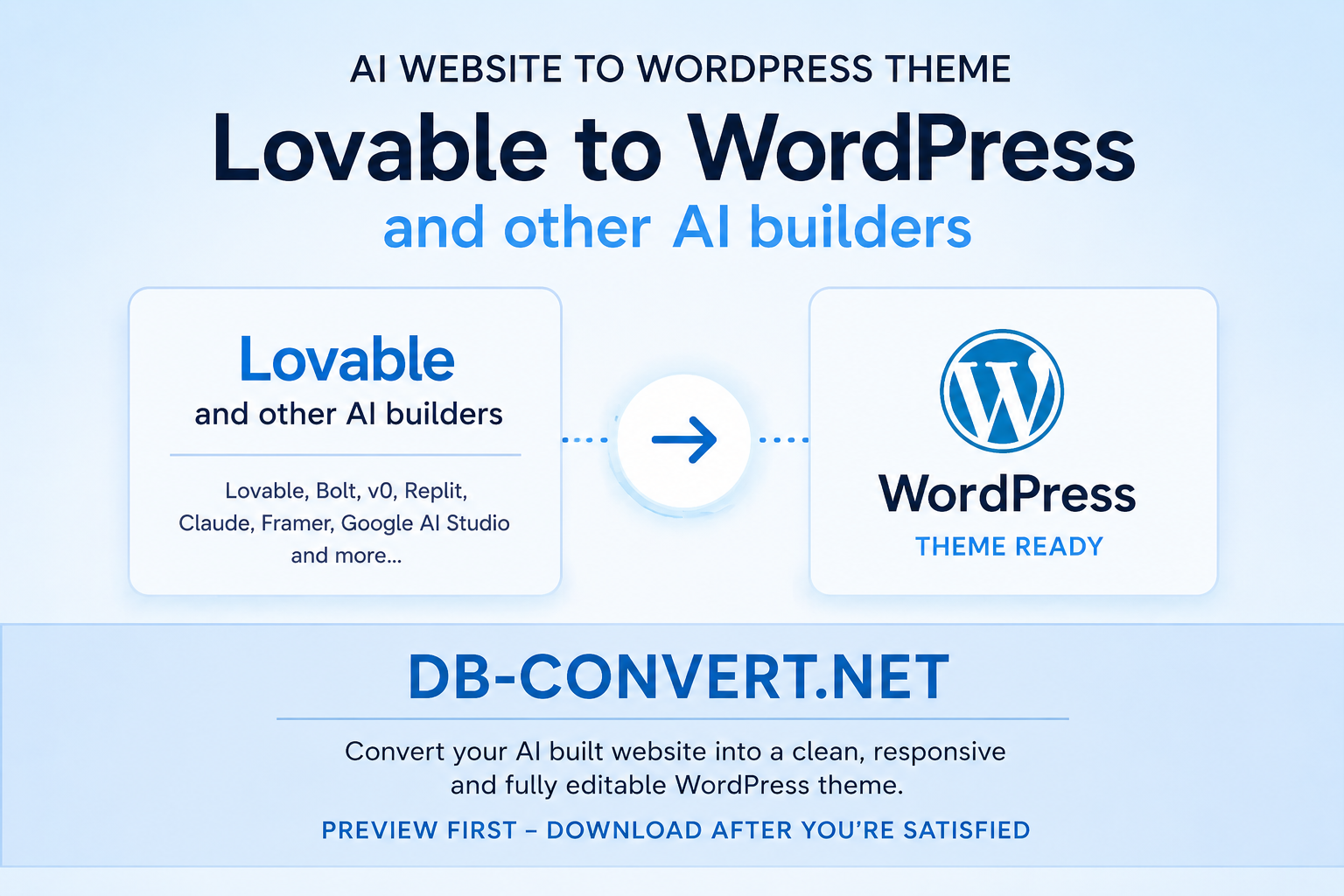
If you would rather watch the process than read about it, this walkthrough shows a conversion happening from start to finish — a useful visual companion to the checklist above.
Step-by-step: from AI build to live WordPress site
- 1Build the AI website. Finish the design in the builder you already like. Do not half-finish pages expecting to complete them later in WordPress.
- 2Make sure all pages are complete. Replace placeholder text, remove draft sections, and publish anything that should exist.
- 3Test navigation inside the AI builder. Every menu item and button should already work before conversion. A broken link does not fix itself in transit.
- 4Export or download the project. Use whatever the builder offers: ZIP, code export, repository or published URL.
- 5Prepare the project. Put everything in one place. Loose pages saved in different chats or folders are the number one cause of 'missing' pages.
- 6Use [Convert2WP.net](https://convert2wp.net/). Provide the project and let the WordPress conversion tool handle discovery, design, images and page building.
- 7Check the discovered pages. Compare the list against your own count. Investigate anything missing before continuing.
- 8Check navigation. Header, footer, dropdowns, in-page anchors and mobile menu.
- 9Check images. Confirm they load from your own WordPress media library, not from the AI builder's servers.
- 10Check internal links. Text links and buttons, on every page, not just the homepage.
- 11Install the WordPress result. Import it into your hosting or a staging site first — always test somewhere private if you can.
- 12Test the complete website. Follow the page-by-page review from the example above.
- 13Check mobile. Real phone, not just a narrow browser window.
- 14Check SEO basics. Unique titles and descriptions, one H1 per page, a sitemap, and redirects for any URL that changed.
- 15Launch. Point the domain, submit the sitemap, and keep the old version available for a week in case you spot something.
Step 6 starts here
Bring your export and watch the pages appear as editable WordPress pages.
Test before you commit
Run a conversion on a staging copy and review it in your own time.
Not sure it will work?
The fastest way to find out is to try it with the site you already built.
What can go wrong — and how to spot it
Nothing here is a reason to avoid converting. These are simply the things experienced eyes look for, and every one of them is fixable once you know it exists.
Missing pages
Symptom: the converted site has fewer pages than you remember. Cause: the page was unpublished, unlinked, or lived outside the exported project. Look for: thank-you pages, legal pages, campaign landing pages and detail pages behind a list.
Broken navigation
Symptom: a menu item goes nowhere, or the mobile menu will not open or close. Look for: dropdown submenus, the logo link back to the homepage, and the menu behaviour after tapping a link on a phone.
Buttons that no longer link
Symptom: a call-to-action looks perfect and does nothing when clicked. Look for: repeated buttons across many pages — they are copied, so one bad copy hides among the good ones.
Missing images
Symptom: a blank area, a broken-image icon, or a section that suddenly has a plain background. Look for: hero backgrounds, logos in the header, icons, and images inside sliders.
Broken internal links and wrong URLs
Symptom: clicking a link inside your text produces a 404, or the address bar shows something like `/index.html` instead of a clean page address. Look for: links written by hand in body text, and old addresses that pointed at the builder's preview domain.
Forms
Symptom: the form looks right, but nothing arrives in your inbox. Reality: form delivery is a backend function and is normally reconnected in WordPress with a form plugin. Always test with a real submission and check the spam folder.
Interactive elements
Symptom: an accordion does not open, a slider does not slide, a filter does not filter. Look for: FAQ accordions, tabs, pricing toggles, image galleries and countdown timers.
Mobile layout
Symptom: the page scrolls sideways, or text sits under a fixed header. Look for: wide tables, long unbroken words, oversized headings and full-width images inside padded sections.
Incomplete conversion
Symptom: everything works, but the site feels thinner than the original. Cause: usually a section that was generated on the fly rather than saved as content. Fix: identify it, then rebuild that one section in WordPress — a small, contained job.
The SEO side: more control, not automatic rankings
This deserves its own section because it is where expectations most often go wrong. Moving to WordPress hands you a control panel. It does not hand you traffic.
- Titles and descriptions become editable per page, so every page can earn its own click in search results.
- Content is easy to expand — and depth is still one of the most reliable ways to rank.
- URLs can be set deliberately, kept short and kept stable.
- Redirects let you move or merge pages without losing the value they built up.
- Schema (the structured data that produces rich results) is a plugin setting rather than a coding task.
- Sitemaps are generated and updated automatically as you publish.
- Internal linking becomes a habit you can act on — related posts, breadcrumbs and contextual links.
- Plugins cover analytics, performance, image compression and accessibility.
- Future updates stop being a project. Someone on your team can publish on a Tuesday afternoon.
The honest framing: if your AI site was already fast and well written, expect rankings to stay roughly where they are immediately after a careful conversion, then improve as you use the new controls. If your URLs change and you skip redirects, expect the opposite. Redirects are not optional.
Final pre-launch checklist
- Every page from the original exists and opens.
- Header, footer and mobile menus all work.
- No missing images; all media served from your own site.
- Internal links resolve; no 404s.
- Interactive sections behave on desktop and phone.
- Each page has a unique title and description.
- URLs match the old ones, or redirects are in place.
- The sitemap exists and has been submitted.
- A backup was taken before going live.
Work through that list and you will know — not hope — that your site is ready. And if you want to see what your own project produces, the practical next step is simply to convert your AI-built website and review the result with this checklist in hand.
Convert my AI website
Lovable, Framer, v0, Cursor, Replit, Gemini, Claude, Bolt or Webflow.
Review before launch
Get the WordPress version, then run the pre-launch checklist above.
Own your website
Editable pages, your media library, your hosting, your rules.
Frequently asked questions
Can I convert a Lovable website to WordPress?+
Yes. Lovable projects usually have a clear page structure, which converts comfortably. Use a WordPress conversion tool and then check forms, animations and any login area.
Can I convert a Framer website?+
Yes. The layout and design carry over faithfully. The parts that need attention are advanced scroll animations and CMS-driven lists such as blog collections.
Can I convert a v0 website?+
Yes, though v0 output is often individual components. Assemble them into a linked, multi-page site first so page discovery and navigation come out complete.
Can I convert a Cursor project?+
If it is a page-based website, yes. If it also contains server-side logic or an application, convert the content pages and treat the app as a separate development task.
Can I convert a Replit website?+
The presentation pages convert well. App functionality and stored data do not travel automatically and need a plan of their own.
Can I convert a Google AI Studio site?+
Yes for the pages themselves. Features that call an AI model in the background need a server-side home; they do not become WordPress pages by themselves.
Can I convert a Gemini-generated website?+
Yes. The main risk is scattered files — gather every page into one project folder before you convert an AI website to WordPress so nothing is missed.
Can I convert a Claude-generated website?+
Yes, and text-heavy sites in particular convert very cleanly, with heading structure usually intact. Check anchors, tables and small interactive scripts.
Can I convert a Bolt website?+
Yes. Public pages convert well; screens that behave like parts of an app should be reviewed separately.
Will all my pages be converted?+
Usually, provided every page is published and included in your export. Always compare the discovered page list with your own count before you continue.
Will navigation still work?+
Menus and links carry over, but they must be tested — dropdowns and mobile menus are the most common weak points after any move.
Will my images still be there?+
Images are brought across and should end up in your WordPress media library. Check hero and background images specifically, as those are the easiest to overlook.
Will my design stay the same?+
The visual result should closely match the original. Fonts, spacing and colours carry over; heavy animation is the most likely thing to simplify.
Can I edit the result in WordPress?+
Yes — that is the point. Pages become editable WordPress pages, so you can change text, swap images and add new pages without touching the AI builder again.
What happens to forms and interactive features?+
The visual form converts; delivery is rebuilt with a WordPress form plugin and tested. Sliders, accordions and tabs are checked individually. Payments, logins and API-driven features are backend systems and may need additional development.
Do I need technical skills to do this?+
Not for the conversion itself. You do need patience for the review — clicking through every page is the part no tool can do for you.
Will converting improve my Google rankings?+
Not automatically. It gives you far more control over titles, URLs, redirects, schema and content, and those controls are how rankings improve over time.
What is the best first step?+
Finish the site in your AI builder, export it, then run it through Convert2WP on a staging copy and review the result with the checklist in this guide.
The verdict
Moving an AI-built website to WordPress is far less dramatic than most owners fear and slightly more detailed than most tools admit. The design survives. The pages survive. Images and links survive with checking. Forms need reconnecting, animations need reviewing, and anything that behaves like an application needs a real plan.
What you gain is a website you can run yourself for years: editable, extendable, portable, and understood by every developer you will ever hire. If that is what you want, build fast with AI, then move it properly — and let a purpose-built AI website to WordPress converter handle the heavy lifting while you do the part that really matters: checking every single page.
See it happen on your site
Curiosity is the right reason. Convert a copy and look at the result.
Any builder, one process
The workflow in this guide applies to all ten builders reviewed above.
Read more at Convert2WP
Details on how conversions are handled, page by page.